In this post I show off the Windows File Explorer replacement tool I've been trying for the last couple of weeks, File Pilot. I discuss why you might want to replace File Explorer and show some of the many features File Pilot has (my number one feature: it's fast!). I then show how you can install File Pilot yourself and discuss some of the things that are currently missing.
Why you need a File Explorer replacement
Windows' File Explorer (previously Windows Explorer) is the Windows-native way to manage your files. Anyone who's ever used Windows will have interacted with it in some way, and it's one of those apps that's only lightly changed, even looking all the way back to Windows XP😅 Sure the graphics have got slightly more modern, HomeGroup came and went, and Windows 11 finally introduced a tabbed interface, nearly 30 years after explorer was released 🙄

In many ways, it's not surprising that Explorer has ossified some what. It's used by literally every person that uses Windows, that's billions of people, most of whom are not tech-savvy. Any changes you make to the explorer better be incremental at best, otherwise you're going to have millions of unhappy users.
explorer.exe likely also suffers from many of the same problems that cmd.exe does; namely that there are thousands of applications that depend on the exact behaviour of the app. Any changes to explorer.exe could break those apps, which have been running perfectly well for decades, and it's just not worth the risk.
Of course, Windows now has Windows Terminal, which is finally a modern, native terminal for Windows. But the main reason this is a completely different application is for precisely the reasons described above—changing
cmd.exewas simply too risky for backwards compatibility.
Despite all this, in general, File Explorer is fine in my experience. I've been a Windows user all my life, and I know all the shortcuts, so I know how to move around and get things done.
That's in contrast to when I had to use a mac for 5 years. Man, I hated using that machine 😅 All the shortcuts were wrong, my muscle memory was completely shot, and Finder sucked. Yes, I realise this is 100% just a matter of familiarity, but it amazed me how even after 5 years I was constantly infuriated by it😂
I never really considered about how annoying I've been finding File Explorer until recently. And then I heard Scott Hanselmen mention File Pilot a couple of times, including his interview with the creator, Vjekoslav Krajačić, on The Hanselminutes Podcast. There was a big emphasis on how fast File Pilot is, so the next time I was waiting 3 seconds for an Explorer window to finish rendering, I finally cracked and gave it a try.
And damn, it's so fast.
Installing File Pilot
You can install File Pilot for free at the moment while it's in beta by going to https://filepilot.tech/:

It's worth noting though that File Pilot isn't going to be permanently free, and is instead aiming to be sustainable once they release a stable version. You can read more on their pricing page, which at the moment looks like this for individual licenses (they also offer business licences)

If those prices give you an initial sticker-shock, I totally understand. £40 seems like a lot for a tool which is included for free with Windows. So for that reason I strongly suggest giving the Beta a try for free now which you can. Because after using it myself for a couple of weeks, I'm almost certainly going to buy a license for myself!
I should mention that there are also free, open source, File Explorer options such as Files at https://files.community/ if File Pilot is too steep for you. I did try Files, but it was missing the sheer speed that File Pilot has, which was the main feature I wanted.
When you download File Pilot, you get a 2MB executable. 2MB! 😅 You can run the app as a standalone tool if you wish, or you can go the extra step (as I did) and install it to your profile, and replace the built in File Explorer:
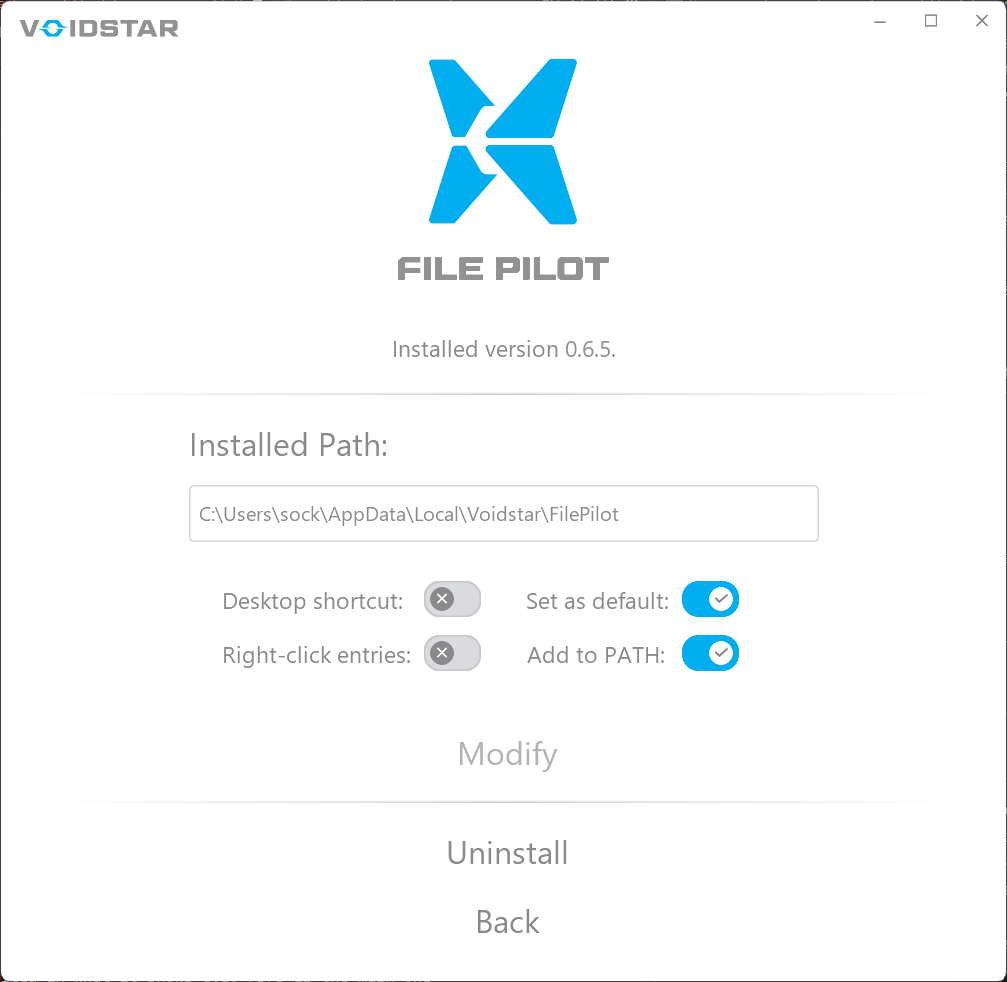
The installer is pretty simple, allowing you to choose the install path, and four options:
- Create a shortcut for File Pilot on the Desktop.
- Add "Open in File Pilot" and "File Pilot here" to right-click menu for files, folders, and desktop.
- Open folders by default with File Pilot and assign it to the Win+E shortcut.
- Add File Pilot to your Path, for access from the command line.
I chose to have File Pilot replace all of my File Explorer usage (where possible, more on that later), which is about the deepest you can integrate. With that, when an app tries to open a folder (e.g. if you click Downloads in Chrome, the Win+E shortcut, or run ii . in PowerShell) you'll get File Pilot instead:

The initial view of File Pilot is very similar to the traditional File Explorer so you'll likely feel quite at home.
First impressions of File Pilot
One of the first things you'll almost certainly notice about File Pilot is just how fast it is. Everything about it is fast. It's hard to overstate this; File Pilot is fast to load; it's fast to search; opening a tab is instantaneous; scrolling is buttery smooth; scaling thumbnails is seamless. Everything is just lightning fast!
Once you get over the speed, you'll probably see that in general it feels quite familiar to File Explorer. The styling isn't entirely in the Windows standard "Fluent" design, but it doesn't feel out of place, and is quite clean general. There's also a bunch of configuration options, so you have dark mode, colour schemes, optional rounded corners, and a bunch of other options:
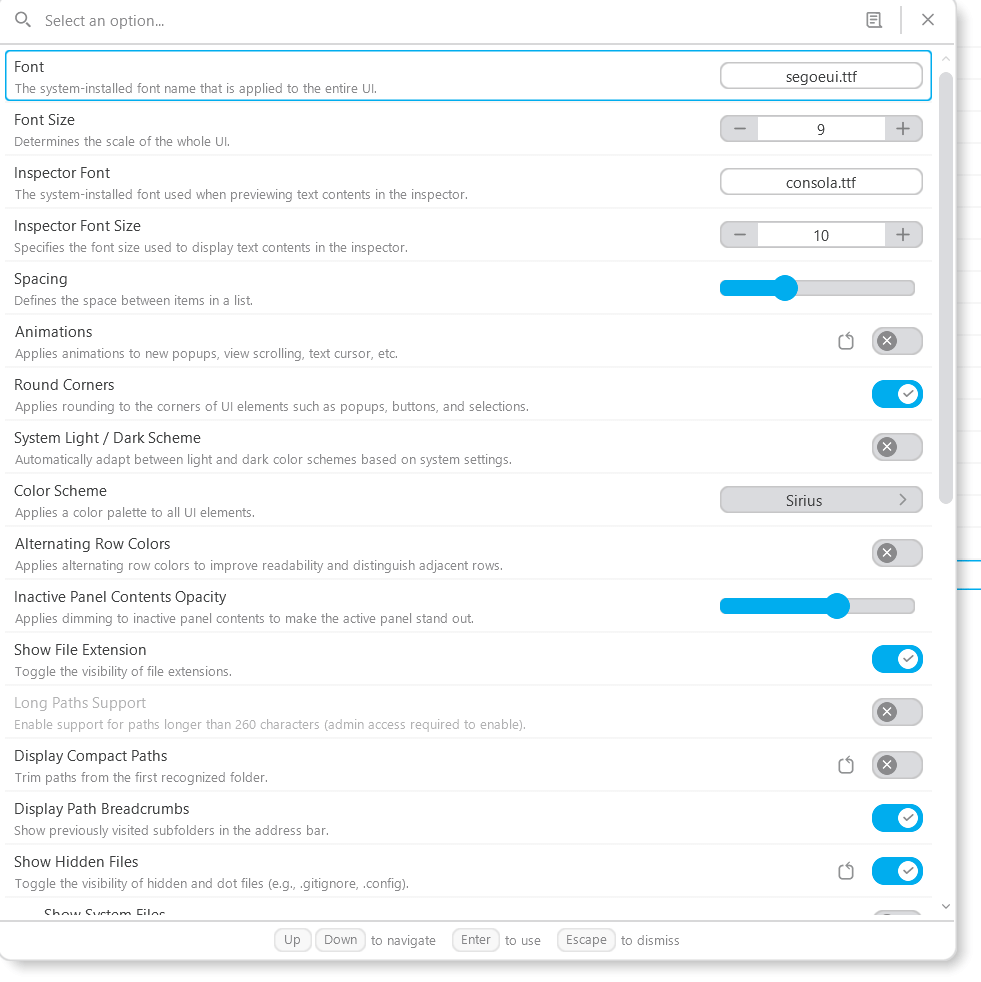
This includes most of the standard options that are part of File Explorer, like hiding/showing hidden/system files and file extensions, as well as a variety of other options.
Exploring File Pilot's features
The options panel is really only the tip of the iceberg however. File Pilot has a ton of other features, which are all easily discoverable either through just clicking in the UI, or using the command palette.
Command Palette
The "command palette" approach, which many developers will recognise from VS Code, seems to be finding its way into more and more apps these days, and File Pilot is no exception. The command palette can be accessed with Ctrl+Shift+P (the same as VS Code!) and provides access to all of File Pilot's features:
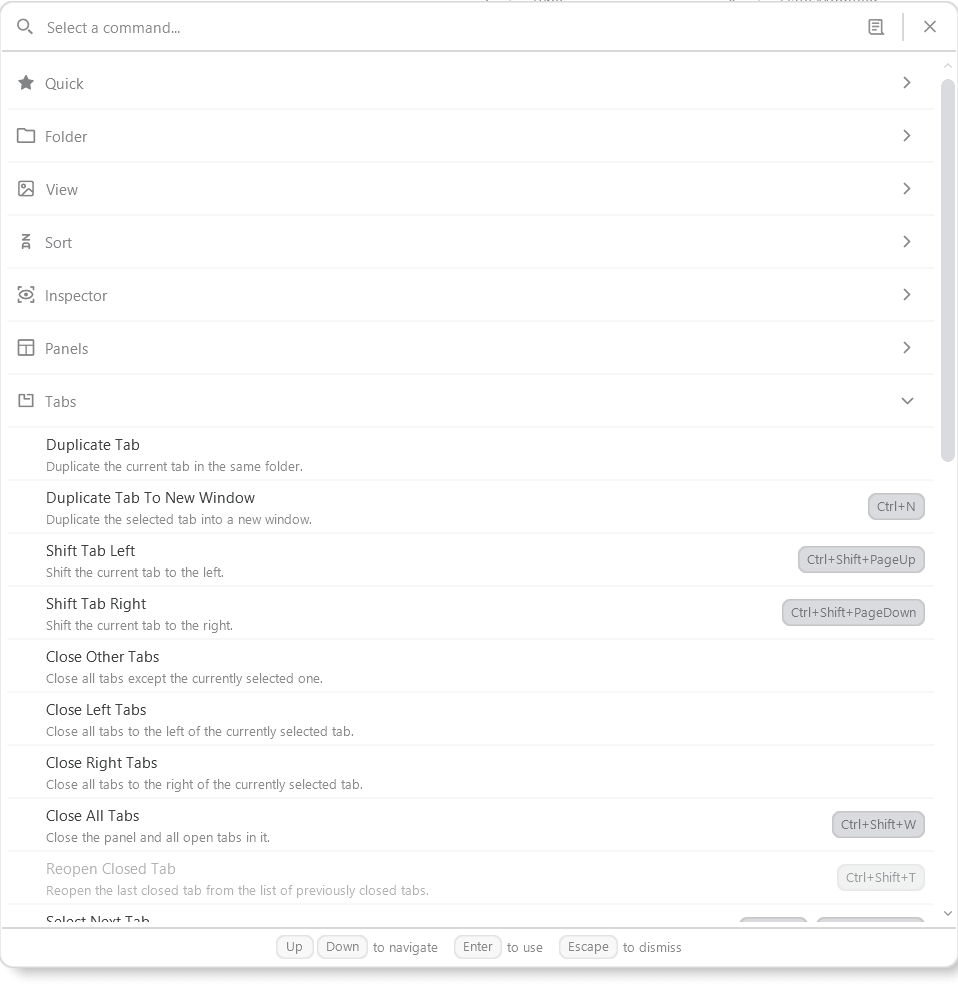
The File Pilot command palette contains a huge number of commands, split into multiple sections (which I've partially collapsed in the above image, to give a sense of what's available). You can instantly search for the command you want by just typing, or just scroll through and browse if you want to get a feeling for what's available.
Shortcuts/Hotkeys
One of the really nice things about the File Pilot UI, which you can also see in the command palette image above, is that File Pilot has shortcuts for almost everything you can do. An importantly (IMO), File Pilot shows these shortcuts all around the UI when you click or right-click on UI items, which is a great way to get to learn what an application can do.
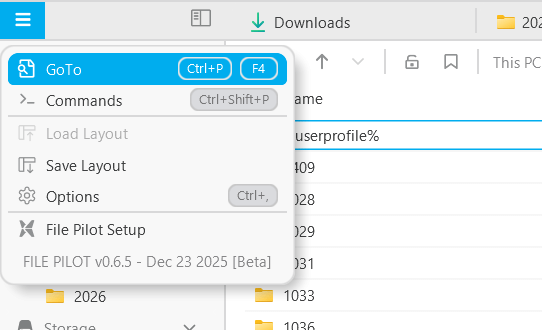
The other great thing I've found with these shortcuts is that they're exactly what I'm used to as a long-time Windows user and developer. All the shortcuts that you would use in File Explorer, such as Ctrl+Shift+N for a new folder, or Ctrl+T for a new tab, do exactly what you expect. And add-in being a VS Code user, and the muscle-memory is there instantly, which is often a barrier to me adopting new tools.
Of course, you might not want the same shortcuts as me, and luckily all the hotkeys are completely customizable. But after my experience trying out Zed and butting up against "incorrect" shortcuts for several weeks, I was pleasantly surprised by how well I gelled with File Pilot.
Split screen and inspector
A very common task when working with a file explorer is moving files between two different folders, or comparing the files in different folders. Typically I would open two instances of File Explorer, use Snap (Win+← or Win+→) to snap them side-by-side, and then Alt+Tab to switch between the different instances. This is ok, but it's a bit clunky, and means you end up having multiple instances of explorer hanging around.
With File Pilot, you can have split panels, just as you might in your terminals, IDE, or editor of choice:

Switching between panels is just a Tab away, you can move the split divider position and you can split to the bottom instead if you prefer.
Alternatively, you can show the "inspector" on the right hand panel by hitting Space on a file to see a preview of it:
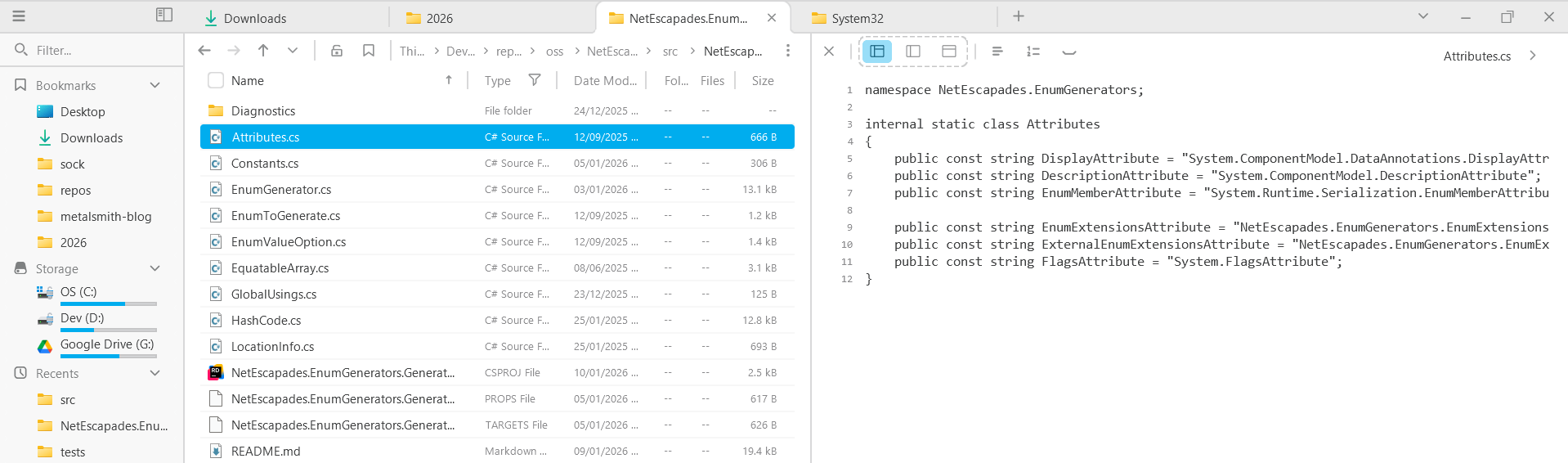
As with everything in File Pilot, the preview for each file is super-fast, though this is an area where the File Explorer is actually a little more feature rich, thanks to Power Toys add-ins that enhance File Explorer's preview pane with support for other files like PDFs or SVGs.
There's a huge number of other features in File Pilot that I could talk about, but seeing as I've mentioned the lack of PDF-preview support, it's probably worth moving on to discuss a couple of aspects of File Pilot that don't quite work like I would like, or which are missing features.
Missing features and sub-optimal behaviours
Seeing as I've mentioned it already, the inspector only seems to support previewing files that are images or text files. For the most part, that's fine, but both PDF support and SVG-rendering would be really nice additions. These aren't deal breakers, but with Power Toy's Peek utility, as well as their additional preview pane plugins I've been a bit spoiled recently!
Another feature that File Explorer has is the ability to group by file/folder recency, e.g. Today, Last Week, Last Month, and then apply sorting to each group independently. I primarily use this in my Downloads folder, which gives a really nice experience, seeing as when I'm opening things in my Downloads folder it's normally stuff I've downloaded recently. But once you get to a week out, ordering by Name gives more natural grouping than by strict descending file date:
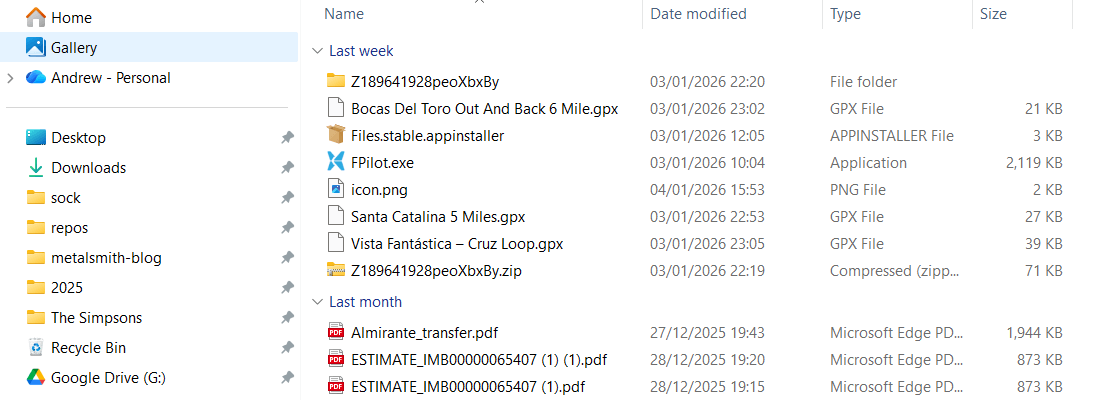
The remaining niggles I have with File Pilot are probably not File Pilot's fault, and are rather a Windows limitation, because they are behaviours that the built-in File Explorer has too. In particular, it's annoying when you have a single instance of File Pilot instance open, with multiple tabs, and then you open a folder from some other app (e.g. opening Downloads from Chrome) and it starts a new instance of FilePilot.exe. I always want it to just open this as a tab in an existing folder, not in a new instance.
Like I say, I suspect this is a limitation with how these folders are opened, seeing as File Explorer does the exact same thing, even if you've enabled "Open each folder in new Tab".
The other thing I've noticed is basically any scenario in which I see a "native" File Explorer window instead of File Pilot 😅 In particular I'm thinking of file-picker dialogs. They're so slow compared to File Pilot, I just wish we could replace those too. And no, I'm not really suggesting that should be possible, but you know…it would be pretty nice if it was.
And that's about it. There's really not many downsides that I've found. Which is why I'm almost certainly going to buy a license soon, despite the fact it's proprietary and relatively expensive. Would I prefer it was open source? Sure. But also, I have to respect a software developer that's made something which is great to use, and is trying to make a business out of that software.
If the fact File Pilot isn't open source is a blocker for you then I totally understand and respect that attitude. But if not, I would definitely recommend giving File Pilot a try. The Beta I've been trying has been rock solid—I've not seen any bugs or crashes—and it's really low effort to try it out. Give it a look, and marvel at the speed! 😀
Summary
In this post I described my experience with the Windows File Explorer replacement, File Pilot. File Pilot is blazingly fast, and includes a bunch of features like split screen, hotkeys for everything, a command palette, and themes and customisation. I've been using it for a couple of weeks now and I'm pretty sure it's going to completely replace my use of File Explorer thanks to the thoughtful shortcut configuration, extra features, and above all fast experience. File Pilot is free to use while it's in Beta, so I recommend giving it a try!