

In this post I describe some of the nice new features released in Git 2.54, including easier simple rebases, hooks defined in config, and some stats about your git repo. I learned about these from other posts, and these are the things that caught my eye.
Easier simple rebases with git history
I'm a big fan of interactive rebasing with git rebase -i, particularly when using a tool like Rider which makes working out exactly what you need to do that much easier:
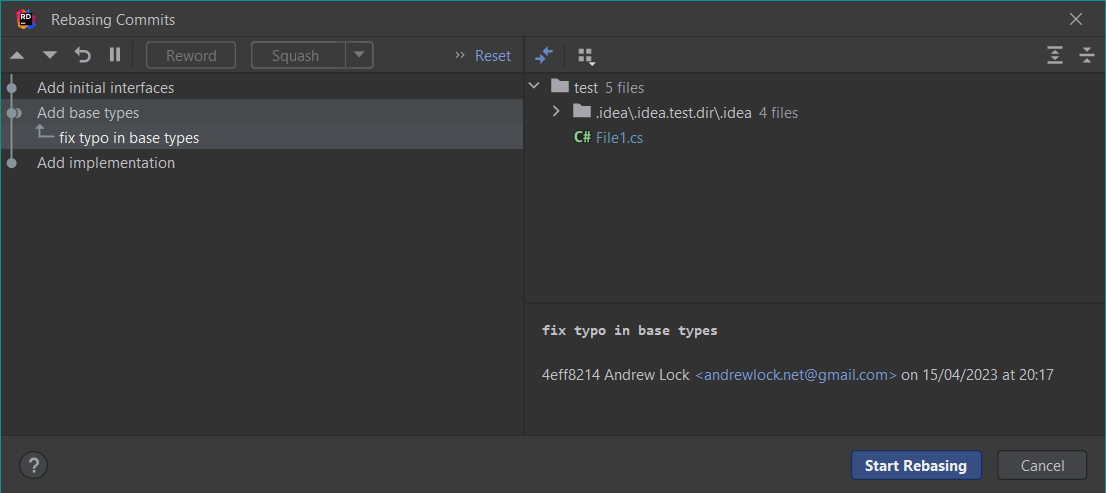
But the reality is that rebase is often daunting to people. You can mess it up, and if you end up with merge conflicts on the way, things can easily get very confusing. And sometimes, you don't really need all the power of a full rebase.
I've written a lot about rebasing in the past, including stacked branches,
git absorband--update-refs. If you don't know about these tools, I highly recommend checking them out!
If you don't need to do anything fancy with git rebase then the new git history command might be for you. In Git 2.54, git history supports two commands:
git history reword <commit>lets you change the commit message for a specific commit.git history split <commit>lets you split a specific commit in two.
Those are obviously a tiny subset of things that you can do with an interactive rebase, but they're also things that you might want to do relatively often. The other nice thing is that you can run these without having to check out the branch they're associated with first.
Rewording commits with git history reword
For example, imagine you have this small set of branches, where we currently have master checked out, and we're working on that, but there's a separate branch issue-83
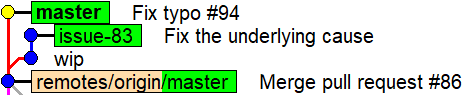
That wip commit at the base of the branch issue-83 doesn't have a good commit message, it should be describing what it does, and was probably meant to be tidied up later. Previously, this is the flow we'd need to take:
git checkout issue-83        # checkout the branch
git rebase -i origin/master  # start an interactive rebase
This would open up an editor, and we'd need to find the commit we want and change the action from pick to reword:
reword 055db13 # wip
pick f44696a # Fix the underlying cause # empty

# Rebase 69d0f46..f44696a onto 69d0f46 (2 commands)
#
# Commands:
# p, pick <commit> = use commit
# r, reword <commit> = use commit, but edit the commit message
# e, edit <commit> = use commit, but stop for amending
# ...
After closing the editor, Git would start rebasing, and then pause and open our editor so we could reword the commit. That obviously works, and if you have the branch already checked out it's not a big deal, especially if you're using an IDE like Rider that makes it even easier.
However, with git history reword you can do the same thing in one shot, from anywhere, without having to checkout the branch first. You simply pass in the commit that you want to change, and Git opens the editor, waits for the update, and rewrites the commit message and fixes the rest of the history:
git history reword 055db134ac326766b1566a64cd81873c69b1dc58 # this is the only step
The whole operation is very fast as well, because Git isn't walking through, updating the working directory as it replays commits, it's just fixing the commits, and then fixing up the descendant hashes.

Splitting a commit with git history split
In general, I like to create self-contained commits in my branches, and to sequence them in such a way that it makes it easier for reviewers that review commit-by-commit. Sometimes, however, I accidentally make a commit which, in hindsight, is too big, and which I want to split. Another scenario is where I accidentally include a file in a commit which was meant to be in a different commit.
Typically, I would handle this by using git rebase -i to start an interactive rebase, pause on the problematic commit, do a git reset HEAD~ to "erase" the commit from history (while keeping the index intact) and then make my two separate commits, before continuing with git rebase --continue. This is a workflow that I'm very comfortable with, but I'm sure many people wouldn't be.
git history split essentially does the same thing in one hit, though just like git history reword, it doesn't require you to have the branch you're editing checked out. Instead, you use the built-in hunk selector to choose which parts of the commit should be pulled out into a "parent" commit.
This feature is apparently inspired by Jujustu's
jj splitcommand.jjis a tool I keep feeling like I should look at, but with mygitmuscle-memory as it is, I just don't have much of an incentive. But if you don't like git, maybe take a look!
For example, let's imagine the commit we just reworded also needs to be split. We initiate using
git history split 1153957368717fbe4dd19866315fbf53b17a0993
Git immediately starts showing you diffs, and you need to decide whether they should be included in the parent commit, or kept in the existing commit:
diff --git a/src/NetEscapades.Configuration.Yaml/NetEscapades.Configuration.Yaml.csproj b/src/NetEscapades.Configuration.Yaml/NetEscapades.Configuration.Yaml.csproj
index 4a249b0..953865b 100644
--- a/src/NetEscapades.Configuration.Yaml/NetEscapades.Configuration.Yaml.csproj
+++ b/src/NetEscapades.Configuration.Yaml/NetEscapades.Configuration.Yaml.csproj
@@ -21,7 +21,7 @@

   <ItemGroup>
     <PackageReference Include="Microsoft.SourceLink.GitHub" Version="1.0.0-*" PrivateAssets="all" />
-    <PackageReference Include="YamlDotNet" Version="13.0.1" />
+    <PackageReference Include="YamlDotNet" Version="16.3.0" />
     <PackageReference Include="Microsoft.Extensions.Configuration" Version="2.0.0" />
     <PackageReference Include="Microsoft.Extensions.Configuration.FileExtensions" Version="2.0.0" />
   </ItemGroup>
(1/1) Stage this hunk [y,n,q,a,d,?]?
At the end, you can see the question (1/1) Stage this hunk [y,n,q,a,d,?]? This is showing you the valid options. If you type ? and push Enter, you can see what each of the options does:
y - stage this hunk
n - do not stage this hunk
q - quit; do not stage this hunk or any of the remaining ones
a - stage this hunk and all later hunks in the file
d - do not stage this hunk or any of the later hunks in the file
? - print help
If you stage the hunk, then it's added to the parent commit, otherwise it stays in the existing commit.
Once you've staged (or not) all of the hunks in the commit, Git opens your editor twice, once for each commit. The editor is pre-populated with the existing commit message in both cases, but you can change both of them. After the editor closes, the split is complete
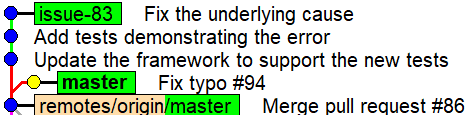
Again, being able to do this without having to check out the branch makes this command both convenient and fast!
Limitations with git history
The main limitation with git history is that it can't be used on any segments of history that contain merge commits; it will just refuse if you try:
$ git history reword a626aa2b9296ed0530356de98fb94bbd78802f5b
error: replaying merge commits is not supported yet!
Also if you're not used to using the interactive hunk staging (e.g. using git add -p) then you might find working with git history split a little tricky. As much as I use the command line for many Git operations, I much prefer using a GUI whenever I need to partially stage files, and that's just not possible with git history split.
The other main limitation is that these are the only things you can do. For me, I don't know how often I would end up doing just these operations and not need to do anything else that would require a full git rebase. I can see myself occasionally using the git history reword, but that's probably about it.
The other thing to be aware of is that the git history command is currently marked experimental, so it may well change in the future.
Setting up Git hooks in repository configuration
Git hooks are, as the name implies, hook points that let you run scripts automatically when Git performs certain actions. The most common hooks are probably "pre-commit" hooks, which run just as you create a commit, and "pre-push" hits, which run just as you push to a remote.
These hooks are a great way to, for example, enforce that code is always run through a linter before it's committed. I've seen people add pre-push hooks that automatically run all the unit tests, to ensure you're never pushing broken code.
The main downside with hooks was often that they were sometimes a bit tricky to setup. In Git 2.54 you can now configure hooks using "normal" config instead! For example, let's say I want to ensure I run dotnet format just before I commit. I could add a pre-commit hook to do this by running the following:
git config set hook.formatter.event pre-commit
git config set hook.formatter.command "dotnet format"
This adds a section to the local git config for the repository that looks like the following:
[hook "formatter"]
	event = pre-commit
	command = dotnet format
The "formatter" name is arbitrary, but this config shows the hook that triggers the event, and the command that will run. With this, any time you create a commit, the hook will kick in and run dotnet format.
For what it's worth, I don't tend to use hooks that much, mostly because I find the slowdown they add to be too disruptive to my flow. But I suspect it's something that will becoming increasingly common in the era of AI agents where you can make sure that you're really enforcing the rules on your agents!
You can add multiple hooks for the same event using this approach, as well as using the "traditional" style. If you want to see all of the hooks that are going to run, you can use the git hooks list <event> command to see them:
$ git hook list pre-commit
formatter
When I originally saw this feature, I thought that it implied that you could finally share config in the repository itself, but that's not the case. It's still not possible to have anyone who clones the repo to have the hooks enabled by default, and likely never will, as this by definition would provide an easy way to get remote code execution on anyone that clones your repo!
Getting some git repository stats with git repo structure
The final tool I'm calling out in this post is the git repo structure command, which can give you some statistics about the size and layout of yourGgit repository. This seems like something which is not going to be an issue for many people, but if you're working on a high velocity repository, then these details could be very important, as it affects how well your CI and repo hosting is going to perform!
Performance-wise, the size on disk of your repository, as well as it's inflated size are important factors in repo performance, as well as the number of commits and the directory structure. All those stats are available in the git repo structure command:
$ git repo structure
Counting objects: 245390, done.
| Repository structure      | Value      |
| ------------------------- | ---------- |
| * References              |            |
|   * Count                 |   1.63 k   |
|     * Branches            |      1     |
|     * Tags                |    241     |
|     * Remotes             |   1.39 k   |
|     * Others              |      0     |
|                           |            |
| * Reachable objects       |            |
|   * Count                 | 245.39 k   |
|     * Commits             |  15.21 k   |
|     * Trees               | 121.16 k   |
|     * Blobs               | 109.01 k   |
|     * Tags                |      3     |
|   * Inflated size         |   3.19 GiB |
|     * Commits             |  13.85 MiB |
|     * Trees               | 273.41 MiB |
|     * Blobs               |   2.91 GiB |
|     * Tags                |    491 B   |
|   * Disk size             | 406.63 MiB |
|     * Commits             |   8.52 MiB |
|     * Trees               |  14.77 MiB |
|     * Blobs               | 383.34 MiB |
|     * Tags                |    438 B   |
|                           |            |
| * Largest objects         |            |
|   * Commits               |            |
|     * Maximum size    [1] |  66.30 KiB |
|     * Maximum parents [2] |      2     |
|   * Trees                 |            |
|     * Maximum size    [3] | 238.24 KiB |
|     * Maximum entries [4] |   2.09 k   |
|   * Blobs                 |            |
|     * Maximum size    [5] |  86.33 MiB |
|   * Tags                  |            |
|     * Maximum size    [6] |    191 B   |

[1] 5dda78ddb94fa922091fa7ecea007d944b41af05
[2] 473cbd76eb66679abaabd17046b469e172bbe386
[3] f857ca54b07540dfb53b88be29e58d6c98686d39
[4] f857ca54b07540dfb53b88be29e58d6c98686d39
[5] cba4d794d0ea43222038ce1df62e63b2a88ef52c
[6] 62b75ef5f602aa209bc278bfea67b173c966a083
If, like me, these numbers don't really mean a lot to you, then this is just interesting numbers for the sake of it 😅 I'm sure they're really important if you work at GitHub or GitLab though 😀
There's many more small features in Git 2.54, these were just the ones that caught my eye, so go update!
Summary
In this post I described some of the new features released in Git 2.54. Most interesting to me was the introduction of git history for simplified rebasing. You can now reword commits using git history reword without having to check out the branch first or do a full rebase. Similarly, you can split a commit in two using git history split. Support was also added for config-based hooks and viewing statistics about your repository using git repo structure.