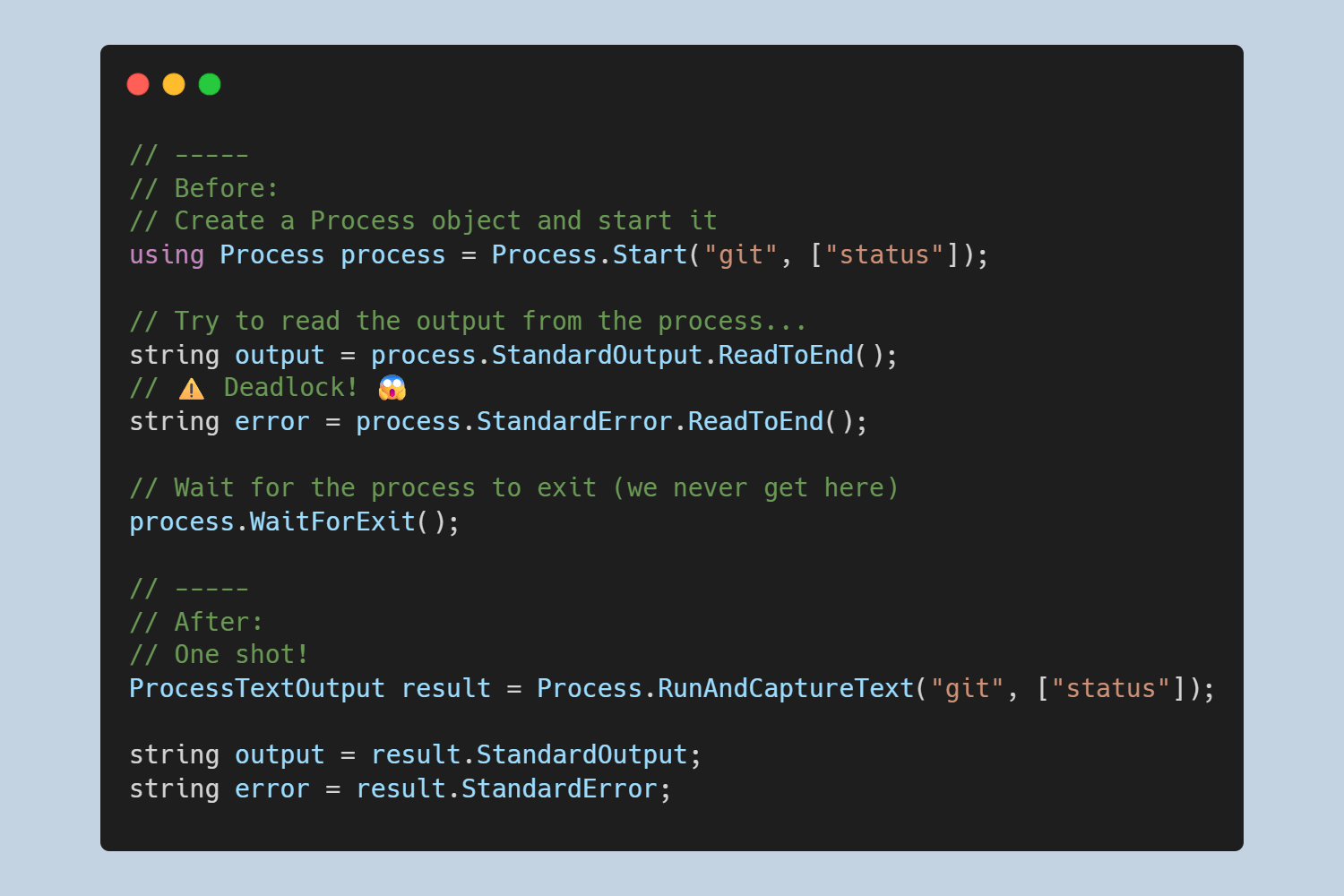

In this post I talk about some of the important updates to the Process APIs in .NET 11. Adam Sitnik has been working on a whole load of improvements, improving both the "simple" scenarios (such as running a process and reading the output), as well as adding new features (such as fire-and-forget or kill on parent exit). This work all builds on top of fundamental features introduced in early .NET 11 previews.
In this post, I talk about the improvements made to reading child-process output, as these improvements are a great way to avoid some critical failures like deadlocks. I look at how you need to handle it in .NET 10, how it works in .NET 11, and how the new APIs work behind the scenes.
There are many more improvements and new APIs than just these in .NET 11 which you can read about in this blog post from Microsoft.
Reading Process output in .NET 10
Until recently, the .NET Process API had been remarkably stable. There have been a few minor improvements over the years, such as the Process.WaitForExitAsync() method introduced in .NET 5, which allows waiting on a Task for a process to exit, but most of the recent improvements have been behind the scenes, such as reducing allocations or latency of operations. However, there were still many things about the Process API that were harder than they should be, or outright impossible.
Risking deadlocks with ReadToEnd()
One of the classic examples of this is how easy it is to incorrectly start a process and read the standard output (stdout)/standard error (stderr) from the process. For example, the following shows how not to do it:
// Define the process to start
var startInfo = new ProcessStartInfo("git")
{
    RedirectStandardOutput = true,
    RedirectStandardError = true,
};
startInfo.ArgumentList.Add("status");

// Create a Process object and start it
using Process process = Process.Start(startInfo)!;

// ⚠️ Read the output from the process (don't do this, it can deadlock!)
string output = process.StandardOutput.ReadToEnd();
string error = process.StandardError.ReadToEnd();

// Wait for the process to exit
process.WaitForExit();
The problem with the code above is that it can cause deadlocks😬 This happens because:
- The process writes text to stdout and/or stderr.
- The call to
StandardOutput.ReadToEnd()keeps reading from the stdout, until the pipe is closed, which typically happens on process exit.- In the code above, this means the the call above blocks until the process exits, because the stdout reading is blocked until then.
- The call to
StandardError.ReadToEnd()will read all of the stderr, but it only starts reading once the process exists. - However, if the process writes to stderr, and writes more than the buffer can hold, the child process will also block, waiting for the output to be drained.
- We're now in a deadlock:
- The parent won't start reading stderr until the process exits.
- The child won't exit until the parent reads from stderr.
There are two main solutions to avoiding deadlocks in this scenario, but in both cases, the important thing is to drain both pipes in parallel.
Using Tasks to avoid deadlocks
The simplest way to write the previous code while avoiding deadlocks, is to rely on the asynchronous versions of the methods, ReadToEndAsync(). These return a Task, which will ultimately run on the thread pool in the background, without blocking execution (until you await the Task):
// Create a Process object and start it
using Process process = Process.Start(startInfo)!;

// Start Tasks to read both pipes, but don't await them
Task<string> outputTask = process.StandardOutput.ReadToEndAsync();
Task<string> errorTask = process.StandardError.ReadToEndAsync();

// Wait for _both_ operations to complete _and_ the process to exit
await Task.WhenAll(outputTask, errorTask, process.WaitForExitAsync());

// It's now safe to await the tasks, as you know they're completed
string output = await outputTask;
string error = await errorTask;
The important thing about the above approach is that the tasks run in the background, draining the stdout and stderr buffers, which removes the risk of deadlocks. This is likely the easiest approach, but it won't work for all scenarios.
Using events to read output as it's written
The Task approach is often the easiest way to avoid deadlocks, but it won't work for you in all cases. For example, at work, we often need to react to what's being written to stdout and stderr as it's written, rather than waiting for the process to exit, so we use a slightly different approach based on event-handlers, as shown below:
// Create a Process object and start it
using Process process = new () { StartInfo = startInfo };

// Create types to store the output
StringBuilder stdOut = new();
StringBuilder stdErr = new();

// Create a callback to handle new data being written
static HandleOutput(string data, bool isStandardError)
{
    var buffer = isStandardError ? stdErr : stdOut;
    buffer.AppendLine(data);

    // Do anything else you need to with the data
}

// Set up the callbacks
process.OutputDataReceived += (_, e) => HandleOutput(e.Data, isStandardError: false);
process.ErrorDataReceived += (_, e) => HandleOutput(e.Data, isStandardError: true);

// Start the process
process.Start();

// Start reading from the pipes
process.BeginOutputReadLine();
process.BeginErrorReadLine();

// As we're draining both pipes, there shouldn't be any risk of deadlock
process.WaitForExit();
This works, and it's about the best we can do with the .NET 10 APIs, but it's safe to say that it's more code than I'd like to write!
Addressing these shortcomings are some of the most visible improvements in .NET 11.
Reading Process output in .NET 11
There are multiple APIs in .NET 11 for improving each of these scenarios:
Process.ReadAllText()/Process.ReadAllTextAsync()Process.RunAndCaptureText()/Process.RunAndCaptureTextAsync()Process.ReadAllLines()/Process.ReadAllLinesAsync()Process.ReadAllBytes()/Process.ReadAllBytesAsync()
I'll walk through each of these API pairs in this section, and show how they safely simplify the above code.
Reading all stdout/stderr into a string
The Process.ReadAllText() and Process.ReadAllTextAsync() APIs cover probably one of the most common scenarios, and are the replacements for the StandardOutput.ReadToEnd() approach I showed previously which could cause deadlocks. There are both synchronous and asynchronous versions, but with the new APIs, both of these are safe to call:
// Create a Process object and start it
using Process process = Process.Start(startInfo)!;

// Read both output and error from the process
(string output, string error) = process.ReadAllText();

// Wait for the process to exit
process.WaitForExit();
Given we're executing synchronous code, the runtime does all the hardwork to avoid deadlocks, by draining both pipes in parallel. On Windows, this relies on overlapped IO with wait handles, while on Unix, it relies on poll-based multiplexing with non-blocking reads. The details of how this are implemented aren't important here (unless you're interested in that sort of thing!) the important thing to understand is that it's safe to call.
The async version of the method is very similar, and you can immediately await the result, unlike when doing that manually. The ReadAllTextAsync implementations handles spawning the Tasks and waiting on them itself, so you can just write the simple code you would expect to write:
// Create a Process object and start it
using Process process = Process.Start(startInfo)!;

// Read both output and error from the process
(string output, string error) = await process.ReadAllTextAsync();

// Wait for the process to exit
process.WaitForExit();
There aren't any overloads for these methods, but you can also provide a timeout (for the sync method) or a cancellation token (for the async method) to ensure you don't sit waiting forever if the process hangs:
public class Process
{
    // ReadAllText has an optional timeout parameter
    public (string StandardOutput, string StandardError) ReadAllText(TimeSpan? timeout = default);

    // ReadAllTextAsync has an optional cancellationToken
    public Task<(string StandardOutput, string StandardError)> ReadAllTextAsync(CancellationToken cancellationToken = default);
}
If the timeout is exceeded (or the cancellationToken is cancelled), the read will throw an exception, so make sure to handle that case. I'd recommend always providing these values (even if they're very big) wherever possible.
These new APIs handle the simple cases where you just want to grab the whole output from the process, but as I described previously, sometimes you need to observe the output as it's generated.
Reading stdout/stderr as it's produced
I described earlier how I had to use the event-based APIs(🤮) at work so that we could view text as it's produced and react to it in real-time, instead of waiting for the process to exit before we handle all the data.
As a reminder, the
ReadAllTextandReadAllTextAsyncmethods will keep reading until the pipes are closed, which typically only happens when the process exits.
In .NET 11, we have a much nicer way to do the same thing. Instead of having to set up the callbacks and configure the listeners, we can use the more idiomatic foreach support for IEnumerable and IAsyncEnumerable with the new Process.ReadAllLines() and Process.ReadAllLinesAsync() APIs.
The following example shows how you can use the ReadAllLines() sync API to read data from the buffer one line at a time, and handle each line, based on whether it came from stdout or stderr.
// Create a Process object and start it
using Process process = Process.Start(startInfo)!;

// Create types to store the output, the same as before
StringBuilder stdOut = new();
StringBuilder stdErr = new();

// Read lines, one at a time, as they're produced
foreach (ProcessOutputLine line in process.ReadAllLines())
{
    // The bool StandardError indicates if this is stderr or stdout
    var buffer = line.StandardError ? stdErr : stdOut;
    // Content contains the actual read data
    buffer.AppendLine(data.Content);

    // Do anything else you need to with the data
}

// Wait for the process to exit
process.WaitForExit();
If you compare this usage to the .NET version that uses events you can see this is much clearer. It's easier to follow, and it's hard to get wrong; you just use foreach and loop over everything!
The synchronous ReadAllLines methods use the same synchronous mechanisms as before (overlapped IO on Windows, or poll-based multiplexing with non-blocking reads), and will block the thread until all the data has been read, and the pipes are closed. In contrast, the async approach uses Channels to handle the async producer/consumer model, without blocking the thread, and uses IAsyncEnumerable<> instead:
// Create a Process object and start it
using Process process = Process.Start(startInfo)!;

// Create types to store the output, the same as before
StringBuilder stdOut = new();
StringBuilder stdErr = new();

// Read lines asynchronously using `await foreach`
// 👇 This is the only change required compared to the sync version
await foreach (ProcessOutputLine line in process.ReadAllLinesAsync())
{
    // The bool StandardError indicates if this is stderr or stdout
    var buffer = line.StandardError ? stdErr : stdOut;
    // Content contains the actual read data
    buffer.AppendLine(data.Content);

    // Do anything else you need to with the data
}

// Wait for the process to exit
process.WaitForExit();
The parity here is very nice too; the sync and async versions, while very different in implementation, are virtually identical when you need to actually use them. That's a big bonus for usability in my eyes.
As before, you can also specify a timeout or cancellation token to ensure you don't block forever if the child process hangs:
public class Process
{
    // The sync version has an optional timeout..
    public IEnumerable<ProcessOutputLine> ReadAllLines(TimeSpan? timeout = default);

    // ...and the async version has an optional cancellation token
    public IAsyncEnumerable<ProcessOutputLine> ReadAllLinesAsync(CancellationToken cancellationToken = default);
}
Both of the methods return a simple readonly struct, as you've seen above:
public readonly struct ProcessOutputLine
{
    public string Content { get; }
    public bool StandardError { get; } // True if the content is from stderr, otherwise false
}
These four new APIs should be your go to replacements for most of the existing code you have where you need to read stdout or stderr from a process, but .NET 11 isn't just about providing better APIs for existing functionality, it also provides niceties for new functionality too.
Reading stdout/stderr as bytes
In my experience, if I want to read a process output, I typically want the string output, but that's not necessarily the case. It might be that you want the raw bytes (in whatever encoding the process is using) so that you can process them yourself. .NET 11 caters for these APIs by providing Process.ReadAllBytes() and Process.ReadAllBytesAsync(). These work very similar to the ReadAllText() and ReadAllTextAsync() versions:
// Create a Process object and start it
using Process process = Process.Start(startInfo)!;

// Read both output and error from the process
(byte[] output, byte[] error) = await process.ReadAllBytesAsync();

// Wait for the process to exit
process.WaitForExit();
These APIs are effectively used by ReadAllText() and ReadAllTextAsync() under the hood, with the text versions performing an additional encoding to string after reading the bytes. Otherwise, you use the APIs in essentially the exact same way.
Making running a process and capturing the text
The sequence of calls above, where you run a process and capture all the text it outputs is very common. In fact, it's so common that .NET 11 adds new APIs specifically for this sequence, to make it easier and simpler. The RunAndCaptureText() and RunAndCaptureTextAsync() methods fill this gap in one easy call:
// Create a Process object, start it,
// capture the output, and wait for exit, all in one!
ProcessTextOutput result = Process.RunAndCaptureText(startInfo);

// ...or run it async
ProcessTextOutput result = await Process.RunAndCaptureTextAsync(startInfo);
This one-shot method call captures everything that we've seen in the previous sections, in one easy line. The ProcessTextOutput includes all the common things you might want to capture, namely the process ID, the stderr/stdout outputs, and the exit codes.
public sealed class ProcessTextOutput
{
    public ProcessExitStatus ExitStatus { get; }
    public string StandardOutput { get; }
    public string StandardError { get; }
    public int ProcessId { get; }
}

public sealed class ProcessExitStatus
{
    public int ExitCode { get; } // If the process was terminated by a signal on Unix, this is 128 + the signal number.
    public PosixSignal? Signal { get; } // Always null on Windows, only has a value if terminated by a signal on Unix
    public bool Canceled { get; }
}
These APIs won't necessarily cover all use cases, but I'd bet they cover at least 90% of scenarios. To simplify things further, there are also overloads that don't require creating a ProcessStartInfo object, and there's the timeout and cancellation options too:
public class Process
{
    // The API we've seen already
    public static ProcessTextOutput RunAndCaptureText(
        ProcessStartInfo startInfo, TimeSpan? timeout = default);

    // This version just requires a file name to run
    public static ProcessTextOutput RunAndCaptureText(
        string fileName,
        IList<string>? arguments = null,
        System.TimeSpan? timeout = default);

    // This is the async version
    public static Task<ProcessTextOutput> RunAndCaptureTextAsync(
        ProcessStartInfo startInfo, CancellationToken cancellationToken = default);

    // This version also requires a file name to run
    public static Task<ProcessTextOutput> RunAndCaptureTextAsync(
        string fileName,
        IList<string>? arguments = null,
        CancellationToken cancellationToken = default);
}
There's a lot more to come to the Process APIs in .NET 11 (just see Adam's post for lots more details)! That's all I'm going to cover in this post though, so enjoy trying out the new APIs!
Summary
In this post I described some of the new APIs introduced in .NET 11 for running processes and for reading stdout and stderr. I described the problem with the APIs available in earlier versions of .NET, namely that it's possible to cause deadlocks if you don't use the APIs correctly! I then introduced each of the new pair of APIs added in .NET 11 for making this easier:
Process.ReadAllText()/Process.ReadAllTextAsync()for reading all the output from a process.Process.ReadAllLines()/Process.ReadAllLinesAsync()for enumerating each line of output from a process as it's emitted.Process.ReadAllBytes()/Process.ReadAllBytesAsync()for reading all the output from a process as raw bytes.Process.RunAndCaptureText()/Process.RunAndCaptureTextAsync()for starting a new process, reading the output, and then waiting for the process to exit, all in one API.
These APIs make working with processes that much easier in .NET 11, though there are many more improvements I didn't discuss here that you should explore!